
CS2 Pro Player Settings 2026: What the Best in the World Actually Use
.png "wera-csgamble.com")
This guide breaks down the CS2 pro settings used by the top players in the world right now — donk, NiKo, m0nesy, ZywOo, ropz, xantares, s1mple, scream, and more — and explains the logic behind each choice so you can adapt them to your own setup intelligently.
What Are the Most Popular CS2 Settings Among Pros?
Before we go player-by-player, it is worth understanding the trends. After reviewing configs from over 50 active tier-one players, here is what the majority converge on:
The consensus is clear: raw input on, V-sync off, motion blur off, static crosshair, and 4:3 stretched resolution. These are non-negotiable at the pro level. The variation comes in sensitivity, exact crosshair dimensions, and audio EQ preferences.
donk CS2 Settings — The Most Watched Config of 2025-2026
donk Video Settings CS2
donk Mouse & Audio Settings CS2
What stands out about donk is his choice to stay on native 1080p rather than 4:3 stretched. This gives him sharper target visibility at range, which suits his aggressive entry-fragging style. His 520 eDPI is on the lower-moderate end, giving him precision without sacrificing flick speed.
CS2 Pro Settings — Full Player Comparison Table
Here is a consolidated reference for the most searched pro player CS2 settings. These are current as of 2026 based on publicly available config data:
CS2 Pro Monitor Settings — What Matters Beyond the Game
Players and managers do not talk about monitor settings enough. Your in-game config means nothing if your display is holding you back. Here is what pro players optimize on their monitors:
The Black Equalizer or Shadow Boost setting (found on BenQ, ASUS, and Acer monitors) is something I recommend every player enable. It lifts the shadows in dark areas of the map — corners, tunnels, under staircases — without affecting the overall gamma. It is a legal visibility advantage that is completely underused outside of pro play.
CS2 NVIDIA Settings — Control Panel Tweaks for Pros
Beyond in-game settings, pro players standardize their NVIDIA Control Panel. Here are the CS2 NVIDIA settings that appear consistently across professional configs:
What Settings Actually Improve Your Skill in CS2?
This is the question I get asked most often by amateur players who want to understand pro settings. Let me be direct: no setting gives you aim. But the wrong settings can absolutely take it away. Here is what I consider the highest-impact changes for a player looking to climb:
1. Disable Mouse Acceleration Everywhere
.webp "disable mouse enhance pointer precision")
This is the single most important setting change you can make. Mouse acceleration — both in Windows (Enhance Pointer Precision) and in-game — means the same hand movement produces different crosshair movement depending on speed. This destroys muscle memory. Turn it off in Windows Control Panel and verify raw input is on in CS2. Every pro in the world plays without it.
2. Find Your eDPI and Lock It In
The most common skill blocker I see in developing players is constantly changing sensitivity. Pick an eDPI between 500 and 900 — the range where the majority of top fraggers operate — and commit to it for at least 30 days. Your aim will get worse before it gets better. That is normal. The consistency you build over time is what matters.
Your DPI is set in your mouse software, not in CS2. Open the companion app for your mouse — Logitech G HUB for Logitech mice, Razer Synapse for Razer, SteelSeries GG for SteelSeries, or iCUE for Corsair — and look for the DPI or sensitivity section. Most mice let you create profiles and assign specific DPI values to each. Set it once, save the profile, and never touch it again. Your in-game sensitivity is then adjusted separately inside CS2 under Settings > Mouse.
3. Enable HRTF Audio
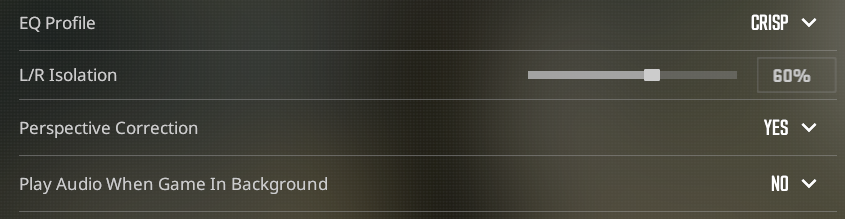
CS2 HRTF audio gives you 3D positional sound that makes footsteps, utility, and gunfire directionally accurate. Pair it with open-back headphones and you will hear information you previously had to guess. This is a legitimate competitive advantage that costs you nothing to enable.
4. Use a Static Crosshair (Style 4)
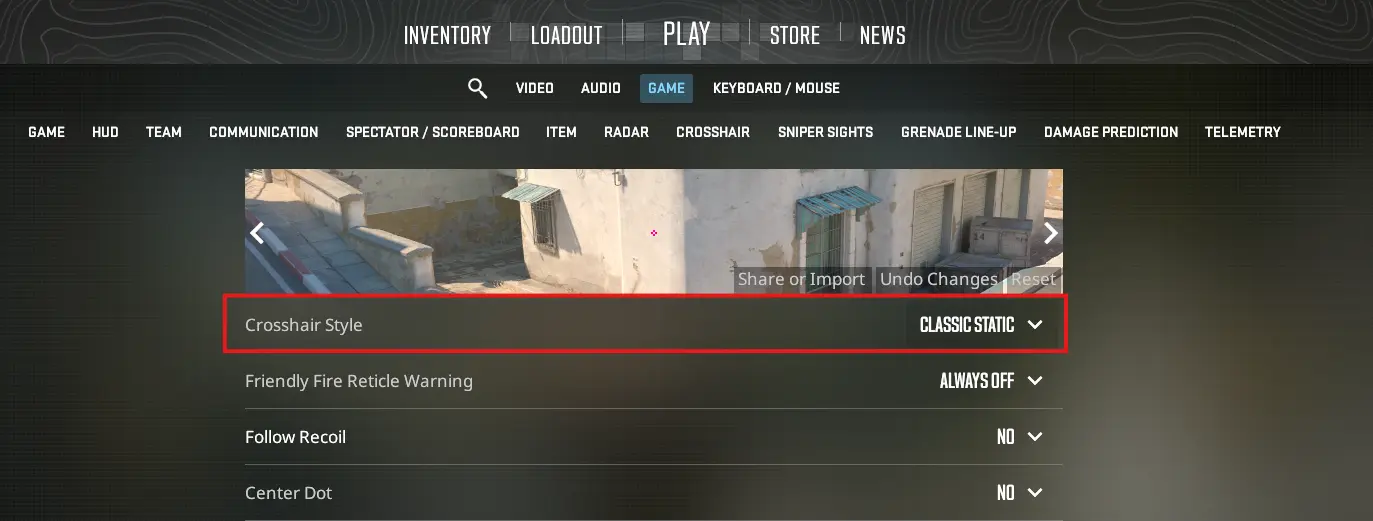
A dynamic crosshair that expands when you move gives you false feedback about your accuracy. A static crosshair trains you to stop moving before shooting, which is the correct habit. Style 4 with a small gap and thin lines is what virtually every pro uses for this reason.
5. Set Your Resolution and Never Change It
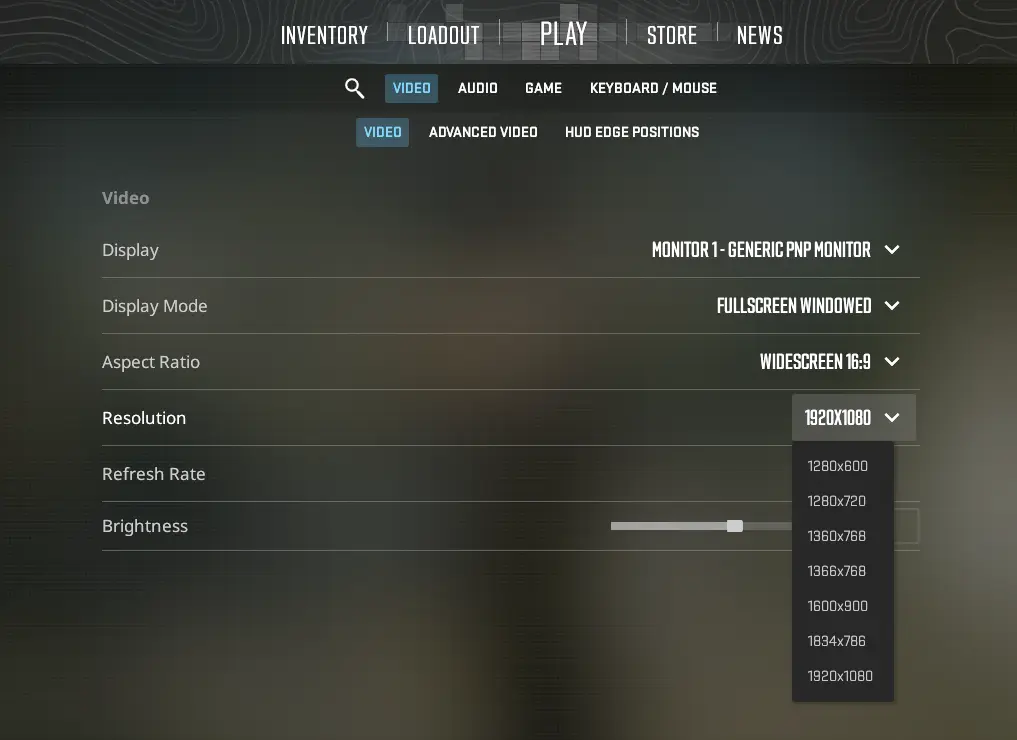
Whether you choose 1920x1080 or 1280x960 stretched is less important than picking one and sticking with it. Changing resolution resets your spatial calibration. Most pros on 4:3 use it because it widens player models slightly and because it is what they learned on. If you are starting fresh, native 1080p is perfectly viable — donk proves that.
Final Word from the Manager's Desk
I have sat across from players like NiKo, m0nesy, and donk in team environments and watched how seriously they treat every detail of their setup. None of them randomly copy each other's configs. They understand why each setting exists and what it does for their specific style of play.
That is the mindset to bring to your own settings. Use this guide as a foundation, understand the reasoning, and then make informed adjustments based on your hardware, playstyle, and rank. The players at the top are not there because of their configs — but the right config removes every excuse and lets your raw skill show through.
Set it up correctly, lock it in, and go grind.
Author
-55.webp "wera-csgamble.com")
.webp "cs2 crosshairs")
Hot Promo Codes



View all promo codes
Browse All Sites