
How to Show FPS in CS2 – Commands, Settings, and Performance Guide
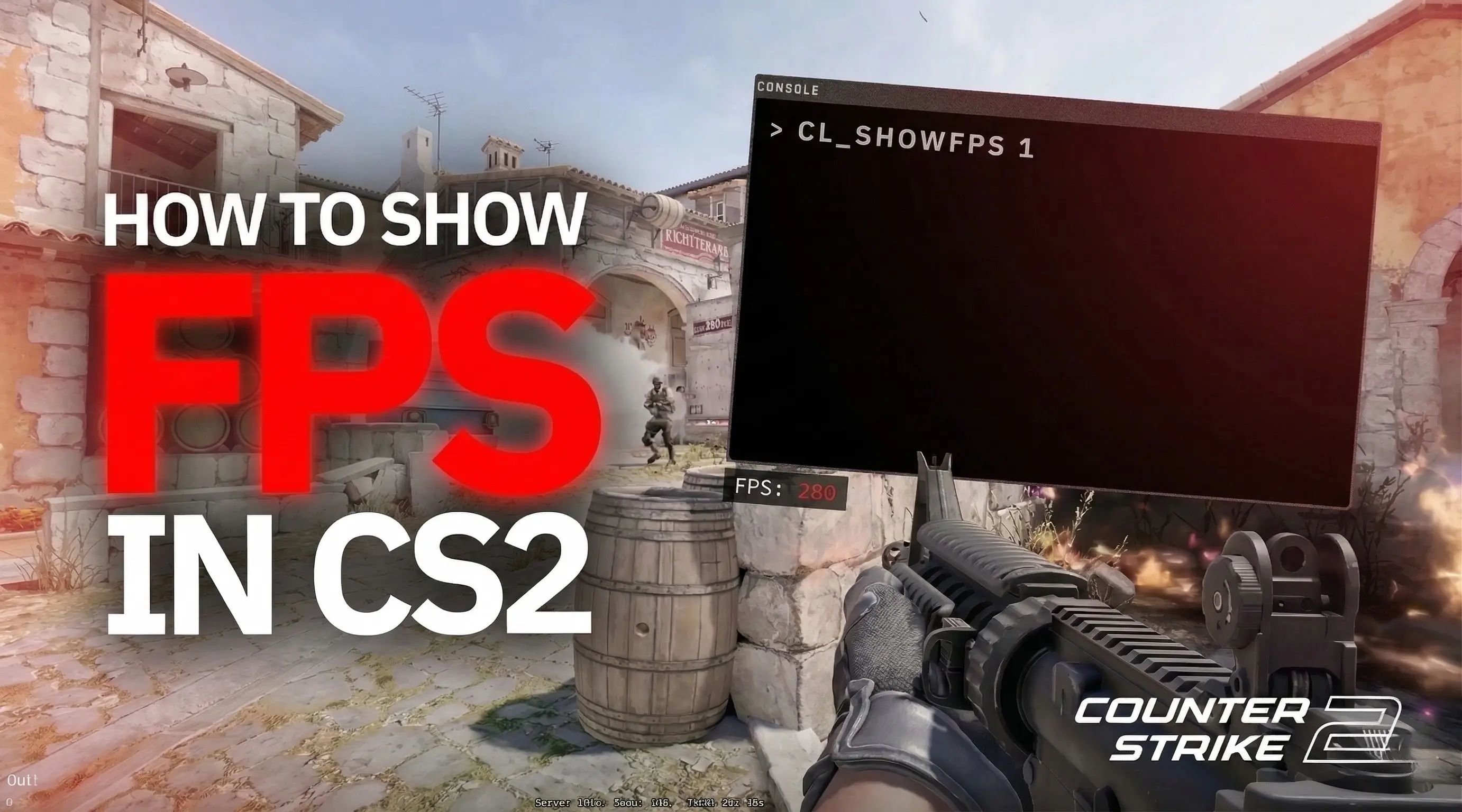
Monitoring FPS in Counter-Strike 2 is critical if you want smooth gameplay, low input lag, and consistent aim. Whether you are troubleshooting performance issues or optimizing your setup for competitive play, knowing how to show FPS in CS2 and how to improve it gives you a real advantage.
This guide covers every working CS2 FPS command, overlays, optimization settings, configs, benchmarking, and pro-level tweaks – all in one place.
Why FPS Is Important in CS2
FPS (frames per second) directly affects:
- Mouse responsiveness
- Hit registration feel
- Visual clarity
- Overall consistency in fights
Stable CS2 FPS matters more than high peak FPS. Drops during smokes, gunfights, or utility usage can lose rounds.
How to Show FPS in CS2 – All Methods
Method 1 – CS2 FPS Command (Best In-Game Option)
Enable Developer Console
- Open Settings
- Go to Game
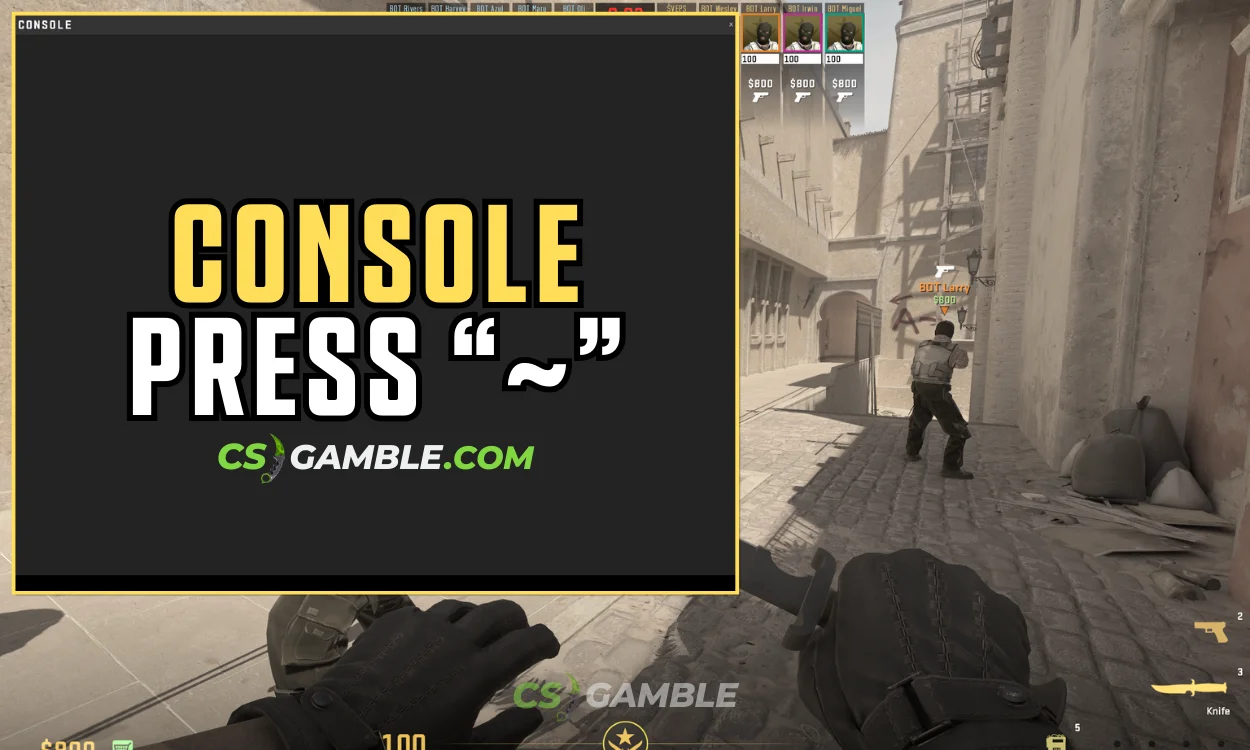
- Enable Developer Console (~)
- Press ~ in-game
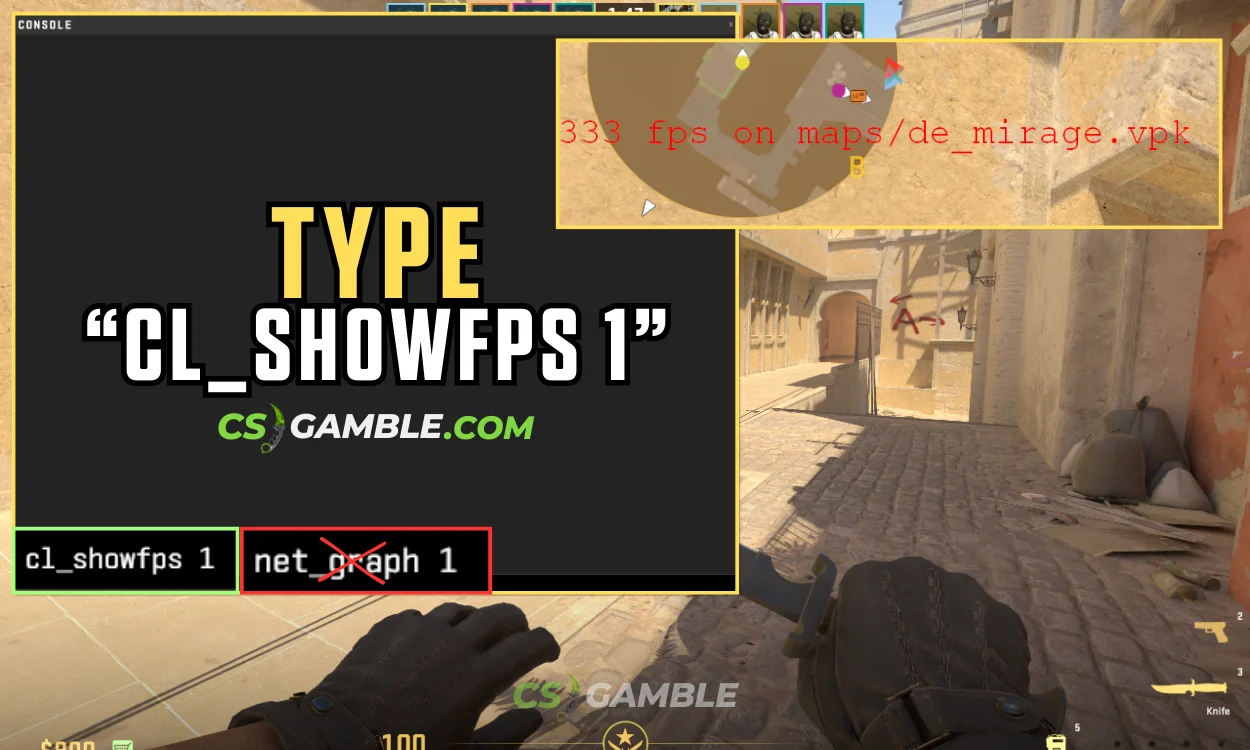
CS2 FPS Command: cl_showfps
This is the main CS2 FPS command.
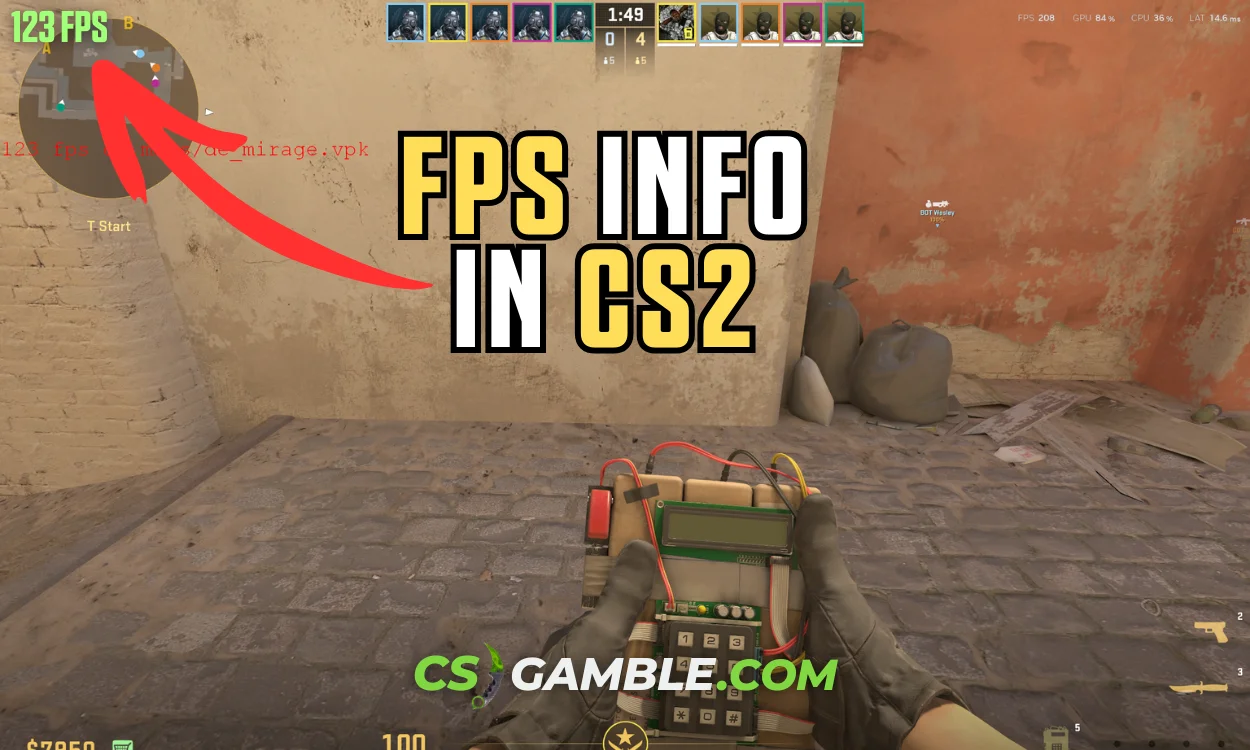
cl_showfps 1
- Displays FPS in the top-left corner
- Minimal performance impact
- Recommended for all players
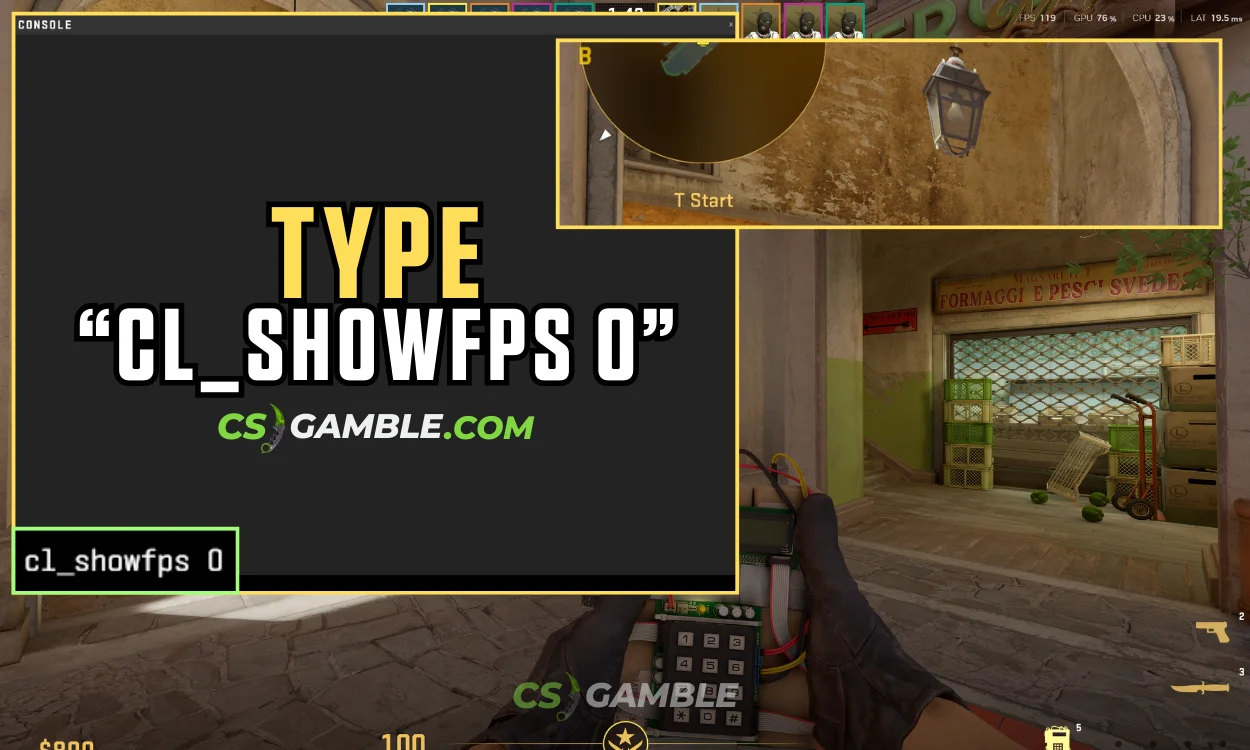
Disable it with:
cl_showfps 0
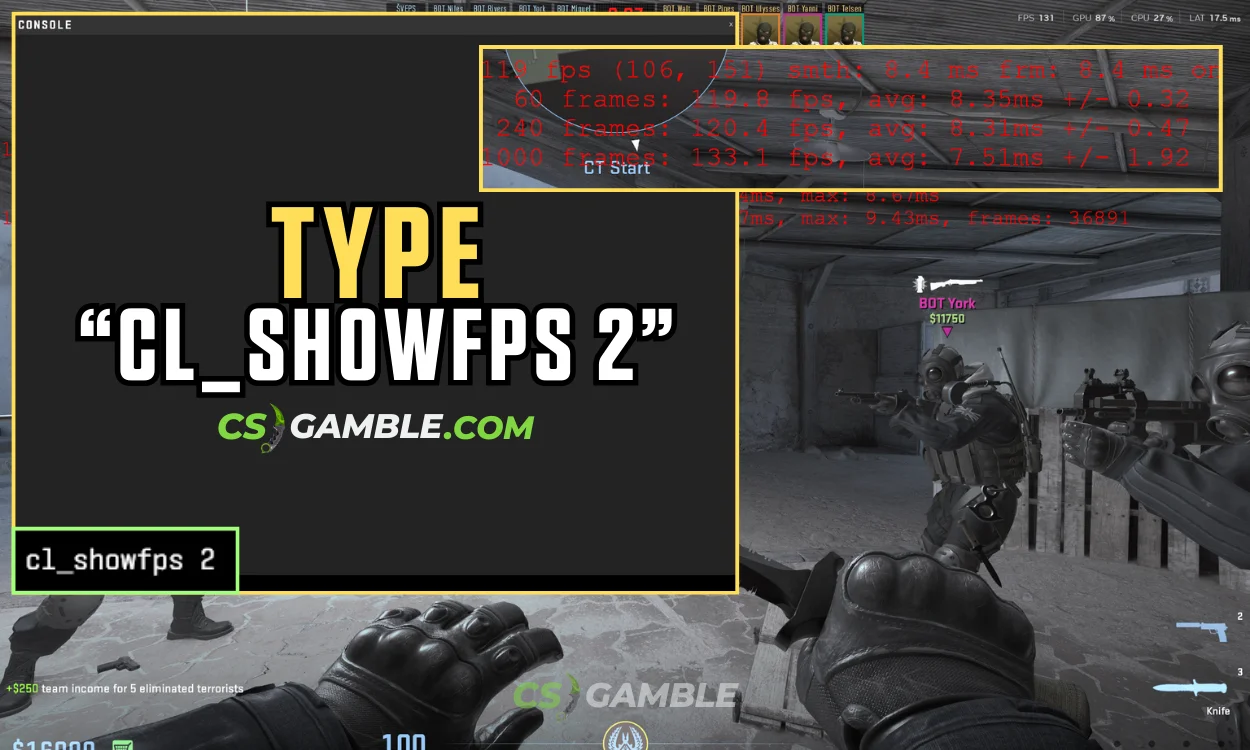
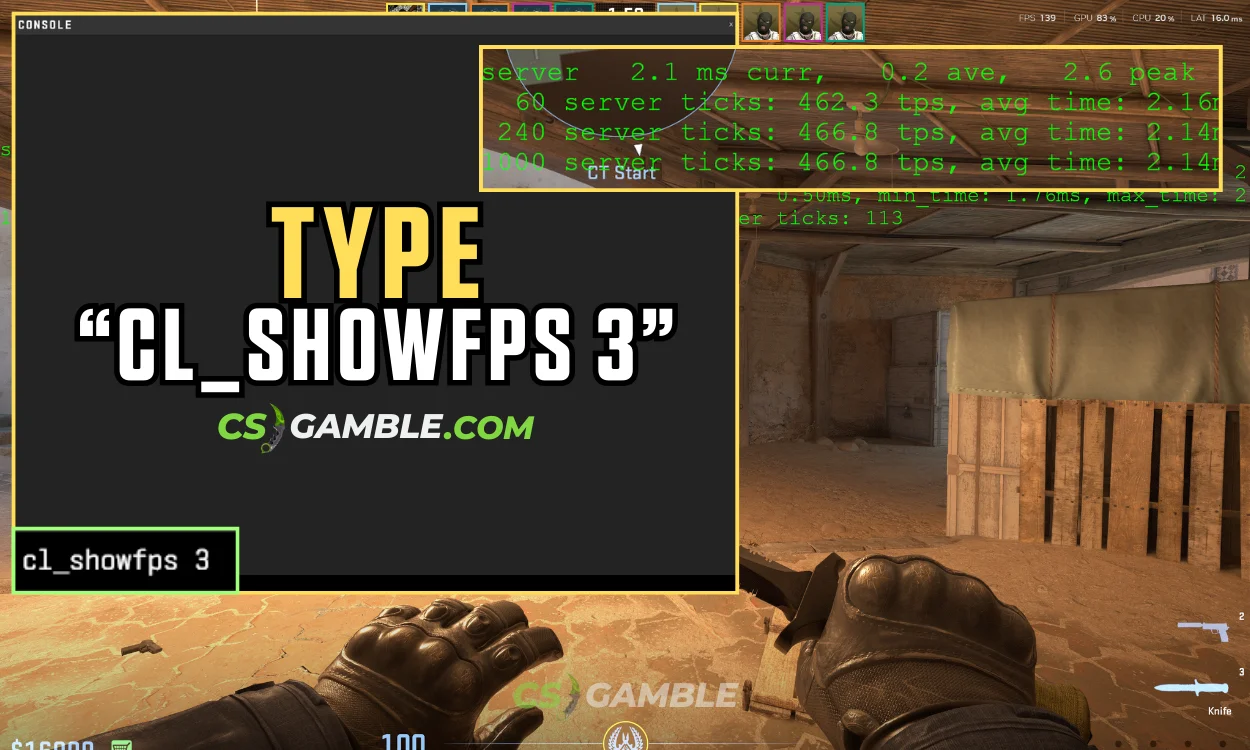
cl_showfps Values
Best choice for competitive play:
cl_showfps 1
This is the most reliable way to show FPS CS2 without overlays.
Method 2 – Steam FPS Counter
Steam’s built-in FPS counter works perfectly with CS2.
How to Enable
- Steam → Settings → In-Game
- Enable In-Game FPS Counter
- Select corner position
Steam guide:
https://help.steampowered.com/en/faqs/view/3462-CD4C-36BD-5767
Good for: clean FPS display
Bad for: no frame-time or system stats
Method 3 – NVIDIA FPS Overlay
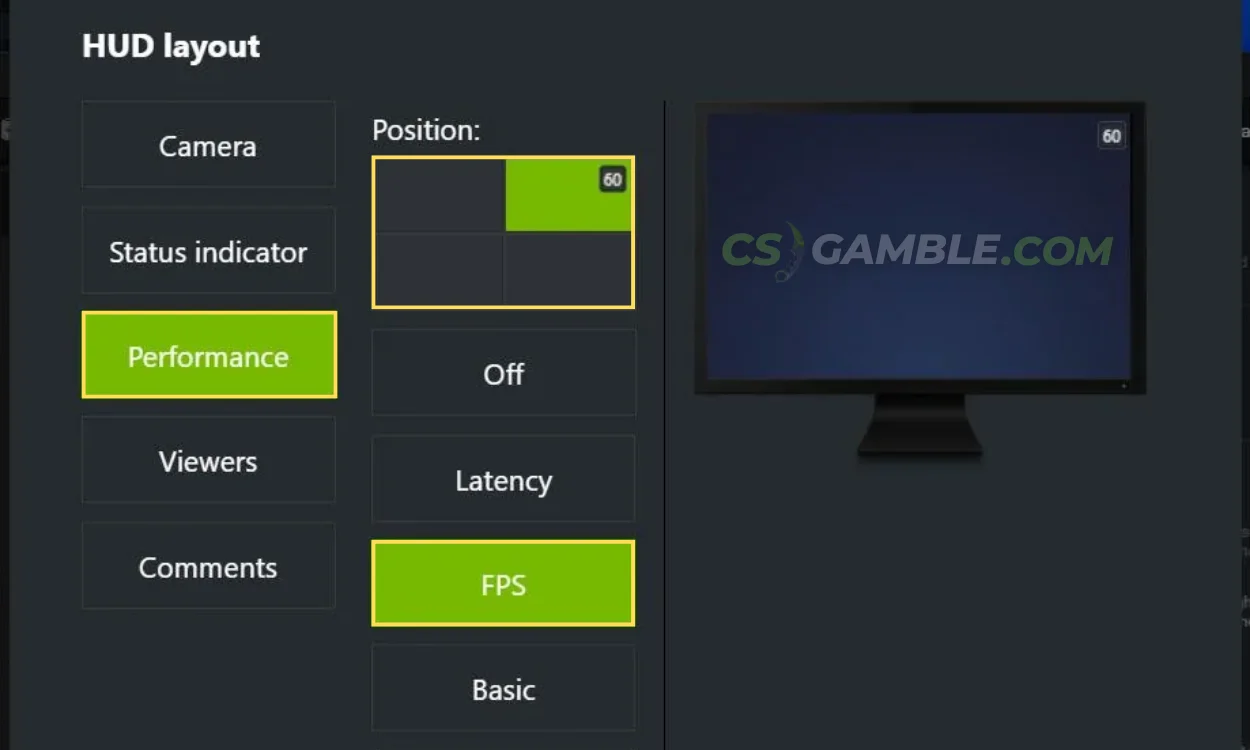
If you use an NVIDIA GPU:
- Press Alt + Z
- HUD Layout → Performance
- Enable FPS or Advanced
Method 4 – AMD FPS Overlay
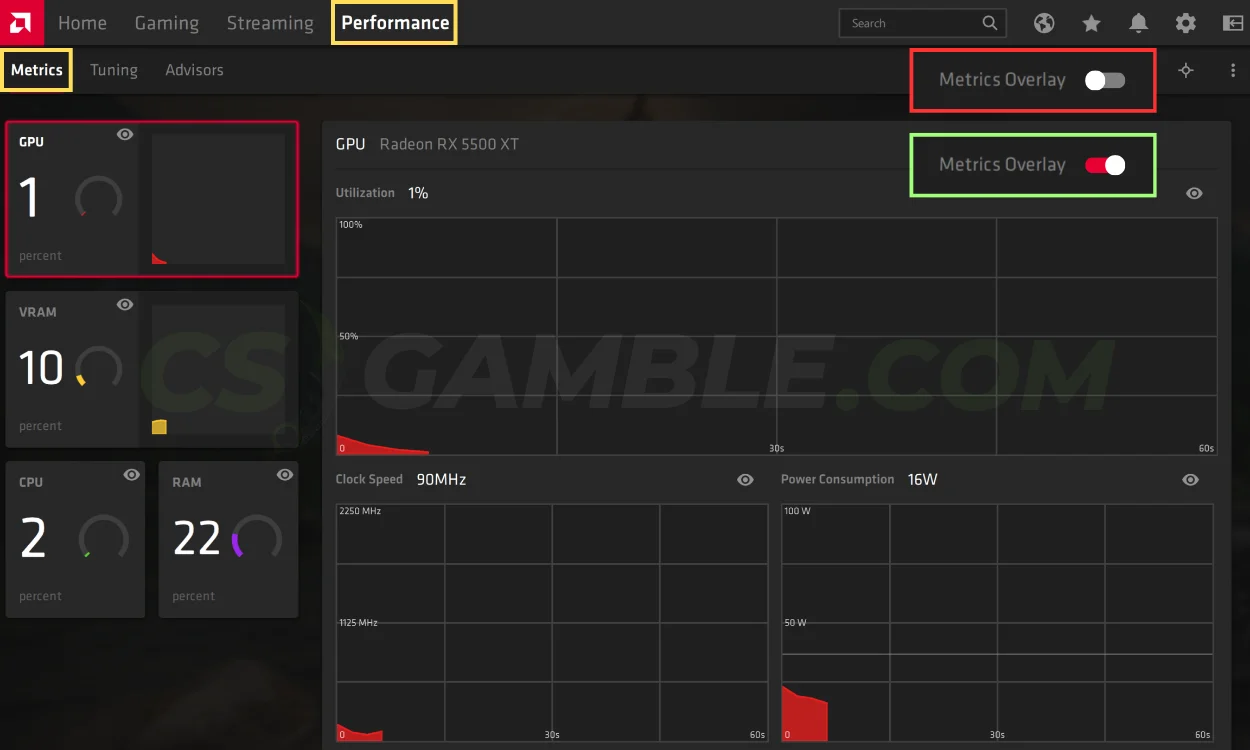
AMD users can enable FPS via Adrenalin Software.
- Enable Metrics Overlay
- Toggle FPS counter
Method 5 – net_graph in CS2 (Limited)
Classic net_graph 1 is not reliable in CS2 due to Source 2 changes. Use cl_showfps or overlays instead.
Source 2 info:
https://developer.valvesoftware.com/wiki/Source_2
Best CS2 Settings for FPS (Low-End PCs)
If you want the best CS2 settings for FPS, especially on low-end systems, use these settings.
Video Settings (Recommended)
These settings significantly improve CS2 FPS stability.
Advanced Graphics Tweaks
- Disable Motion Blur
- Disable Film Grain
- Disable Depth of Field
- Disable Bloom
These have no competitive benefit and cost FPS.
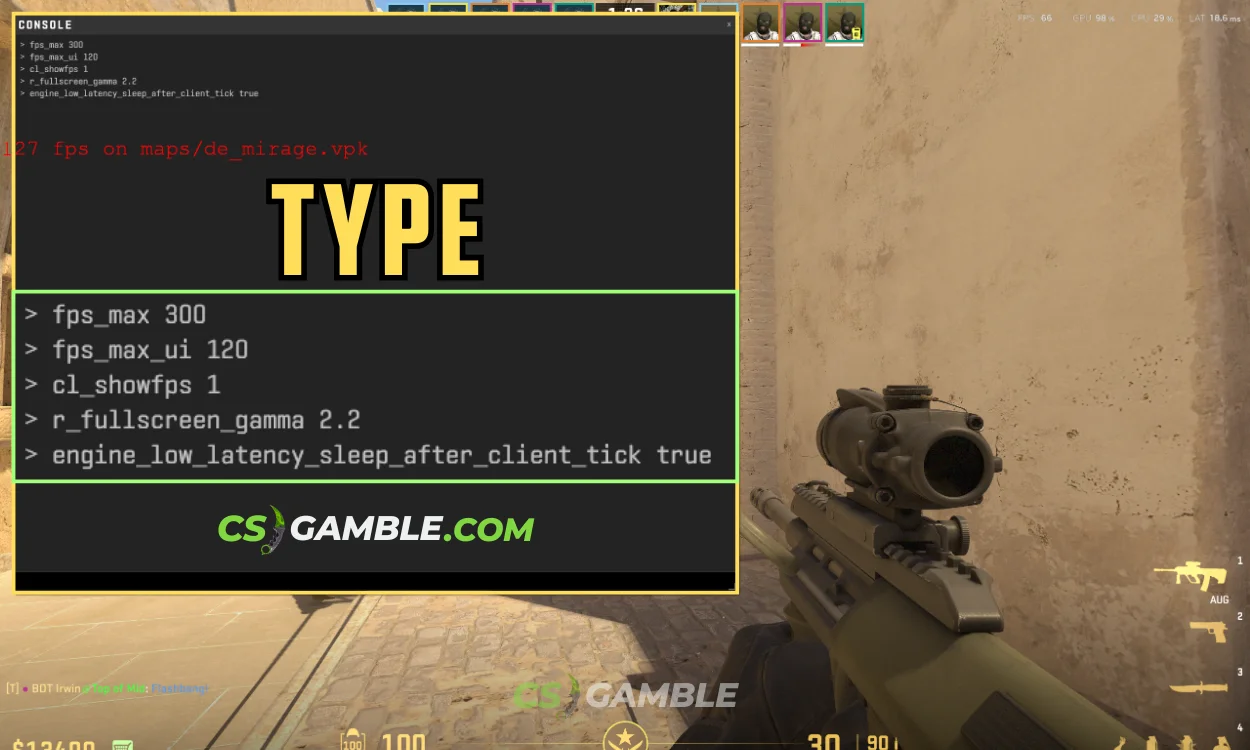
FPS Optimization Config for CS2
Create or edit autoexec.cfg.
Recommended FPS Config
fps_max 300
fps_max_ui 120
cl_showfps 1
r_fullscreen_gamma 2.2
engine_low_latency_sleep_after_client_tick true
Optional FPS cap:
- 240 for 240Hz
- 165 for 165Hz
- 144 for 144Hz
Avoid uncapped FPS unless benchmarking.
Bind FPS Toggle (Optional)
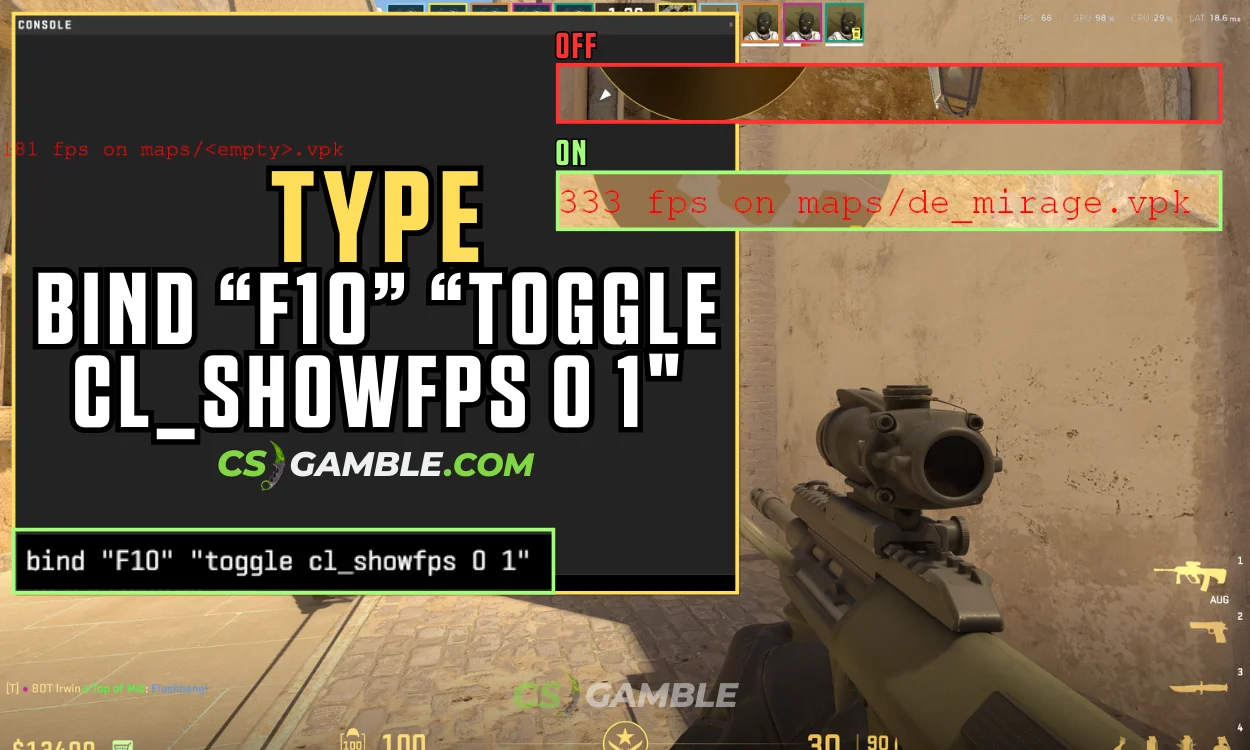
bind "F10" "toggle cl_showfps 0 1"
FPS Benchmarking Guide for CS2
Benchmarking helps you measure real performance changes.
How to Benchmark CS2 FPS
- Disable overlays except one FPS counter
- Join an offline map
- Use same location and angle
- Run for 2–3 minutes
- Track:Average FPS1% lowsFrame-time consistency
- Average FPS
- 1% lows
- Frame-time consistency
Best Benchmark Maps
- Aim maps
- Practice mode with bots
- Smoke-heavy scenarios
What Matters More Than FPS
- Frame-time consistency
- No stutters during fights
- Stable lows above refresh rate
High average FPS with bad 1% lows feels worse than lower but stable FPS.
Pro-Level Performance Tweaks (Used by Competitive Players)
These tweaks are commonly used by semi-pro and pro players.
Windows Optimizations
- Enable Game Mode
- Disable Xbox Game Bar
- Set CS2 to High Priority
- Disable background apps
NVIDIA Control Panel
- Low Latency Mode: On or Ultra
- Power Management: Prefer Maximum Performance
- Texture Filtering Quality: High Performance
In-Game
- Keep graphics minimal
- Avoid frequent alt-tabbing
- Use wired mouse and Ethernet
Best Way to Show FPS in CS2
If you only need to show FPS CS2, the CS2 FPS command is more than enough.
Pro Player FPS Settings Comparison (CS2)
Professional players prioritize stability, low input latency, and visibility over visual quality. While exact setups vary by hardware and sponsor requirements, the core CS2 FPS philosophy is very consistent.
Common Traits Across Pro Players
- Low or medium graphics
- FPS capped slightly above monitor refresh rate
- No visual distractions
- Minimal overlays
- Consistent frametimes over max FPS
Pro Player Graphics Settings (Typical)
These settings maximize CS2 FPS stability, especially during smokes and executes.
FPS Caps Used by Pro Players
Why not uncapped?
- Prevents CPU spikes
- Improves frame-time consistency
- Reduces microstutter
This approach delivers better real-world performance, not just higher numbers when you show FPS CS2.
Pro Player Console FPS Commands (Typical)
fps_max 300
fps_max_ui 120
cl_showfps 1
engine_low_latency_sleep_after_client_tick true
Most pros rely on the CS2 FPS command (cl_showfps) only during testing, then disable it for matches.
CS2 Optimization Checklist (Quick & Effective)
Use this checklist to ensure your system is fully optimized for maximum CS2 FPS and consistency.
In-Game Optimization Checklist
- Enable Developer Console
- Use cl_showfps 1 to verify FPS
- Set graphics to Low / Performance
- Disable motion blur, film grain, bloom
- Enable NVIDIA Reflex (if supported)
- Set FPS cap slightly above refresh rate
System & Driver Checklist
- Update GPU drivers
- Enable Windows Game Mode
- Disable Xbox Game Bar
- Close background apps
- Use High Performance power plan
- Plug in laptop (if applicable)
NVIDIA Control Panel (If Applicable)
- Power Management: Prefer Maximum Performance
- Low Latency Mode: On or Ultra
- Texture Filtering Quality: High Performance
- Vertical Sync: Off
- Shader Cache: On
AMD Adrenalin Checklist
- Enable Anti-Lag
- Disable Chill
- Disable Enhanced Sync
- Enable Metrics Overlay (for testing only)
Network & Stability Checklist
- Use wired Ethernet
- Close downloads / streams
- Avoid VPNs while playing
- Restart PC before long sessions
- Avoid alt-tabbing mid-match
Final FPS Verification
Before competitive play:
- Launch CS2
- Enable cl_showfps 1
- Join practice map
- Throw smokes, flashbangs
- Verify no major FPS drops
If FPS stays stable, your setup is ready.
Final Notes on CS2 FPS Optimization
If you only want to show FPS CS2, the cl_showfps command is enough.
If you want better CS2 FPS, settings, caps, and consistency matter far more.
Key takeaways:
- Use the correct CS2 FPS command
- Focus on stability, not peak FPS
- Apply best CS2 settings for FPS
- Benchmark after every change
- Optimize for your hardware, not visuals
1. What is the best CS2 FPS command?
cl_showfps 1 is the most accurate and lightweight command to show FPS in CS2.
2. Does showing FPS reduce performance?
No. The CS2 FPS command has negligible impact.
3. How do I increase CS2 FPS on a low-end PC?
Lower graphics, disable visual effects, cap FPS slightly above refresh rate, and use an FPS config.
4. Is uncapped FPS good in CS2?
Not always. Uncapped FPS can cause frame-time spikes. A smart cap is better.
5. Why does FPS drop during smokes?
Smokes and particle effects are CPU-heavy in Source 2. Lower particle settings help.
6. Is CS2 more demanding than CS:GO?
Yes. Source 2 has higher CPU and GPU demands, especially with lighting and smokes.
7. Should I use Steam or NVIDIA FPS counter?
Steam: simple FPS check
NVIDIA: full performance diagnostics

Related Articles
CS2 Stuttering With High FPS: Why It Happens and How to Fix It (2026)
CS2 can show 300 FPS and still feel like it's dropping frames. That gap is frame time, not frame rate: how consistently each frame gets delivered, not how many land per second. Most stutter advice targets the wrong number. Here's how to tell network stutter from performance stutter in about three minutes, then which fix actually matches what you find.
Best CS2 Launch Options in 2026 for FPS, Performance and Low Latency
The best CS2 launch options in 2026 are -novid -high -nojoy -freq matched to your monitor's refresh rate, with +fps_max 0 optional for uncapped frames. CS2 is well optimized, so a short line beats the long command strings people copied over from CS:GO. Below is every command worth using, what each one does, and which ones to skip.
CS2 Pro Player Settings 2026: What the Best in the World Actually Use
Read moreHot Promo Codes



View all promo codes
Browse All Sites