
CS2 Crosshairs – Best Settings, Codes, Styles and Pro Player Examples
.webp "cs2 crosshairs")
Your crosshair in CS2 directly affects precision, target tracking, and consistency.
A poorly configured crosshair can obscure enemies, distract during spray control, or slow reaction time.
Conversely, a properly optimized CS2 crosshair stays visible, predictable, and reliable in every fight.
This guide covers CS2 crosshair codes, styles, settings, best aim configurations, and professional player crosshair examples – all in one place.
What is a Crosshair in CS2 and Why it Matters
A crosshair is the visual reference point that shows where bullets will land.
In CS2, crosshair configuration directly impacts:
- First-bullet accuracy;
- Spray control reference;
- Flick consistency;
- Crosshair placement discipline;
- Visual clarity during fights.
With Source 2 rendering, crosshair visibility and scaling matter more than in CS:GO, especially on higher resolutions.
A Good CS2 crosshair should:
- Be visible on all maps;
- Stay static and predictable;
- Avoid covering enemy models;
- Match sensitivity and playstyle.
How to Change Crosshair in CS2 (In-Game Settings & Console)
CS2 allows full customization using in-game menus or console commands. If you are learning how to change crosshair in CS2, you have two main methods.
Changing Crosshair via CS2 Settings Menu
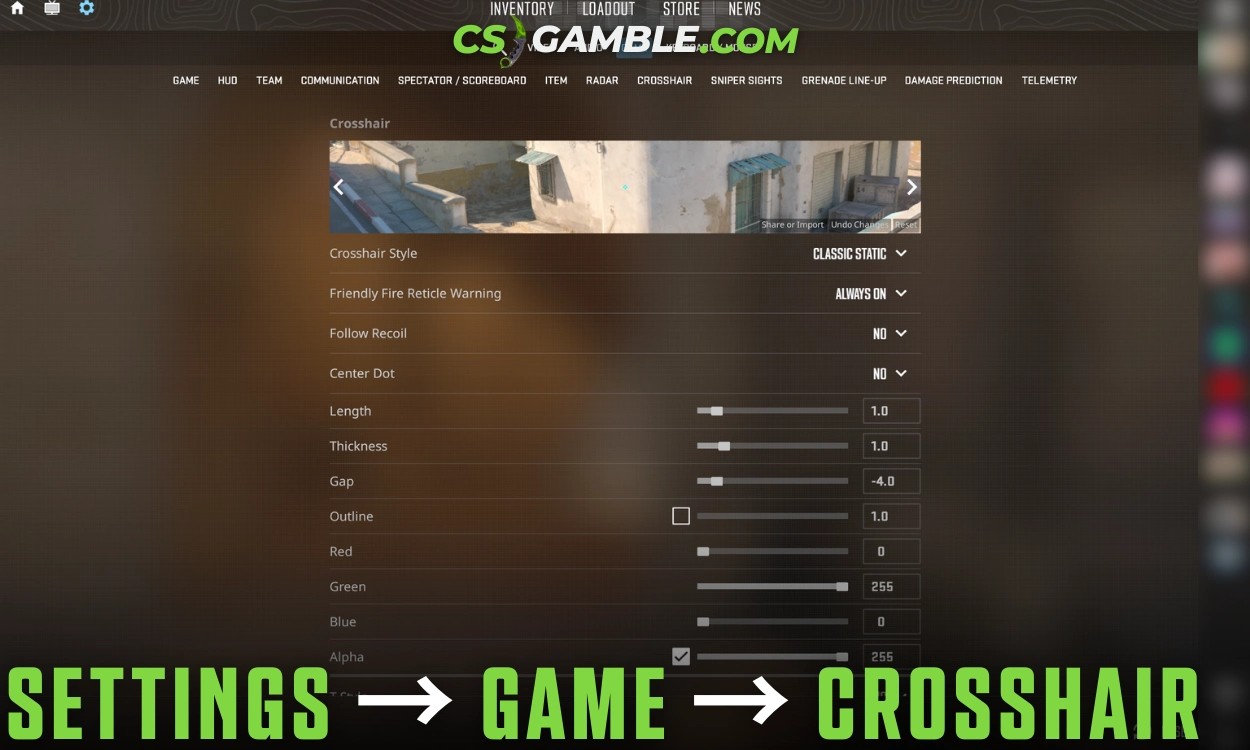
Settings -> Game -> Crosshair
Available options:
- Style;
- Size;
- Thickness;
- Gap;
- Color;
- Alpha (transparency);
- Outline thickness.
This method provides instant visual feedback and is ideal for beginners.
Changing Crosshair via Console Commands
Enable console:
Settings -> Game -> Enable Developer Console
Common commands:
- cl_crosshairsize
- cl_crosshairthickness
- cl_crosshairgap
- cl_crosshaircolor
- cl_crosshairalpha
Console input allows precise numerical control, which is essential when tweaking a specific CS2 crosshair code.
CS2 Crosshair Styles
Different crosshair styles suit different experience levels and roles.
Classic Static Crosshair
- Does not move while shooting;
- Most common in professional play;
- Best for splay control and consistency.
Dynamic Crosshair
- Expands while moving or shooting;
- Shows weapon inaccuracy;
- Rarely used in competitive play.
Dot Crosshair
- Single dot;
- Excellent for tapping and AWP;
- Less spray reference.
Hybrid Crosshair (Static + Gap Adjustments)
- Static lines with small gap;
- Balanced clarity and control;
- Popular among riflers.
Best Crosshair CS2 Settings for Accuracy
Finding the best crosshair CS2 often requires balancing visibility with precision. Most effective configurations follow similar principles.
Crosshair Size, Thickness and Gap – What Works Best
Recommended baseline:
- Small to medium size;
- Thin but visible thickness;
- Small or negative gap.
Oversized crosshairs reduce precision.
Extremely thin crosshairs reduce visibility.
Crosshair Color – Visibility vs Comfort
To ensure you have the CS2 best crosshair for visibility, stick to:
- Green;
- Cyan;
- Yellow.
These colors contrast well across all active CS2 maps.
Outlines and Alpha Transparency Explained
- Outlines increase visibility but add cutter;
- High alpha improves focus.
Most pro players use:
- No outline or minimal outline;
- High alpha (solid crosshair).
CS2 Crosshair Codes – How to Import and Share
CS2 supports easy sharing via import codes. This feature allows you to instantly apply a pro player’s settings.
How to Copy Crosshair in CS2
If you have found a code you like, here is how to copy crosshair in CS2:
1. Open Settings -> Crosshair
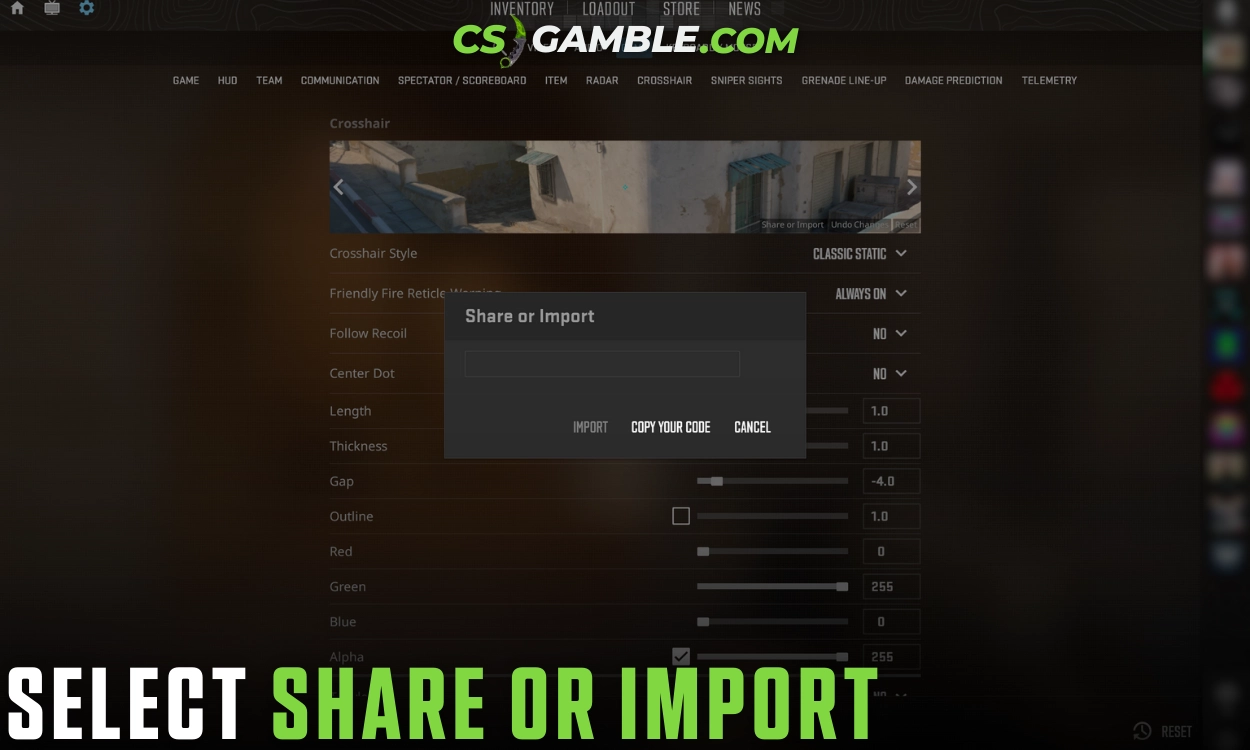
2. Select “Share or Import”
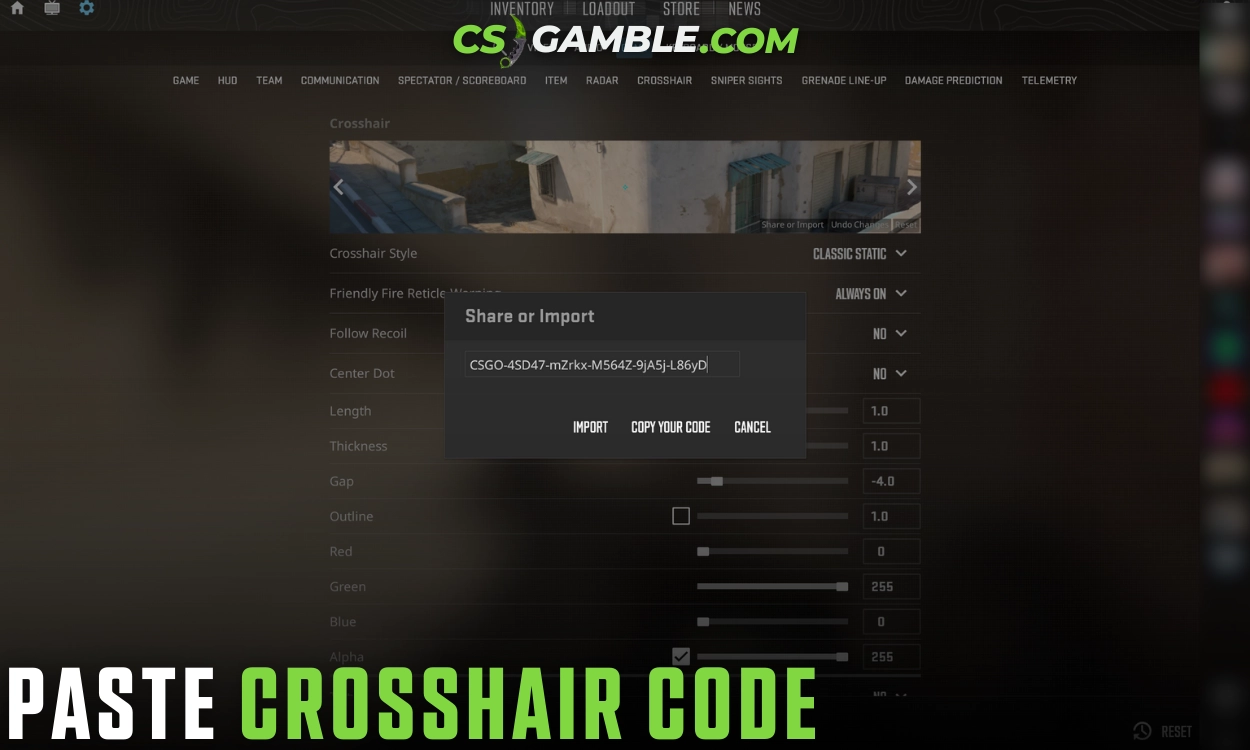
3. Paste the crosshair code
How to Copy and Export Your Own Crosshair Code
Your configured crosshair can be exported from the same menu. Simply click “Copy your code” to share your CS2 crosshair codes with friends.
Best CS2 Crosshair Codes for Different Playstyles
Here are some specific CS2 crosshair codes optimized for different roles and weapons.
Best Crosshair for Rifles (AK-47 & M4)
Example code:
CSGO-Rif1e-Stat1-Cross-Hair1-00001
- Static;
- Medium thickness;
- Small gap;
- Green color.
Best Crosshair for AWP & Scoped Weapons
Example code:
CSGO-AWP-D0t-Small-Prec1se-00002
- Dot style;
- Minimal obstruction;
- High contrast color.
Best Crosshair for Beginners
Example code:
CSGO-Begin-Visib1e-Safe-A1m-00003
- Slightly larger size;
- Clear outline;
- Easy visibility.
Minimalist Crosshairs for Advanced Players
Example code:
CSGO-Min1m-Stat1c-Pro-A1m-00004
- Thin lines;
- No outline;
- Small gap.
Professional CS2 Player Crosshairs
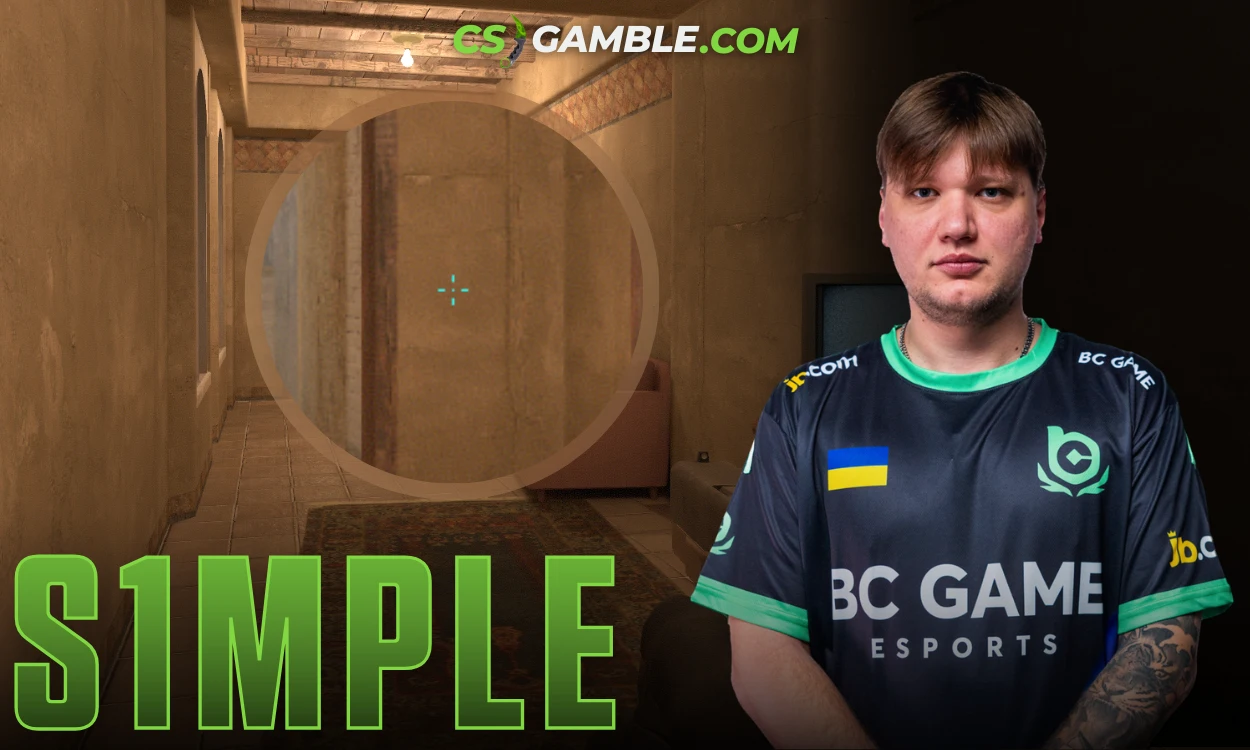
Rest of the settings from S1mple: ProSettings
- Style: Legacy;
- Thickness: 0;
- Gap: -2;
- Color: Cyan;
- Alpha: Yes (255).
Crosshair code:
CSGO-E8xcE-27Lmw-2ipNt-3HZvp-pevvE
ZywOo CS2 Crosshair
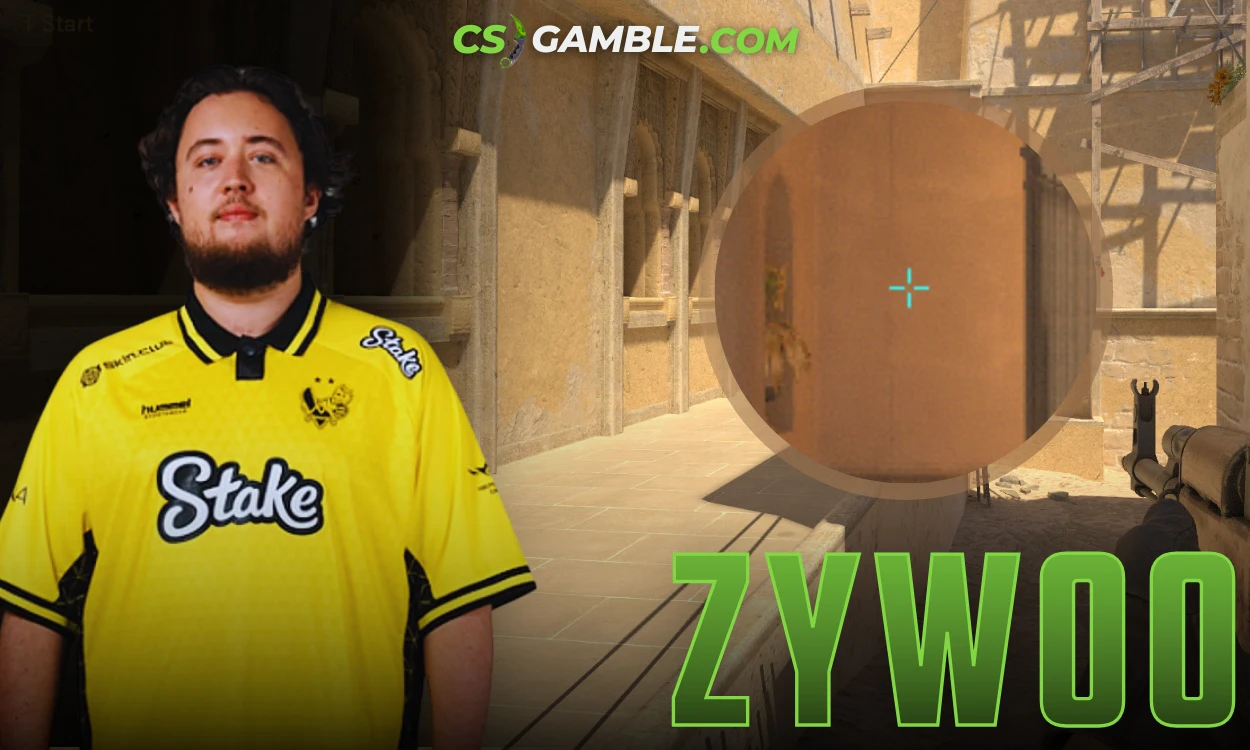
Rest of the settings from ZywOo: ProSettings
- Style: Classic Static;
- Thickness: 0.1;
- Gap: -3;
- Color: Cyan;
- Alpha: Yes (255).
Crosshair code:
CSGO-c2nZk-um3no-3LSxE-ZXO5n-Mv5qB
NiKo CS2 Crosshair
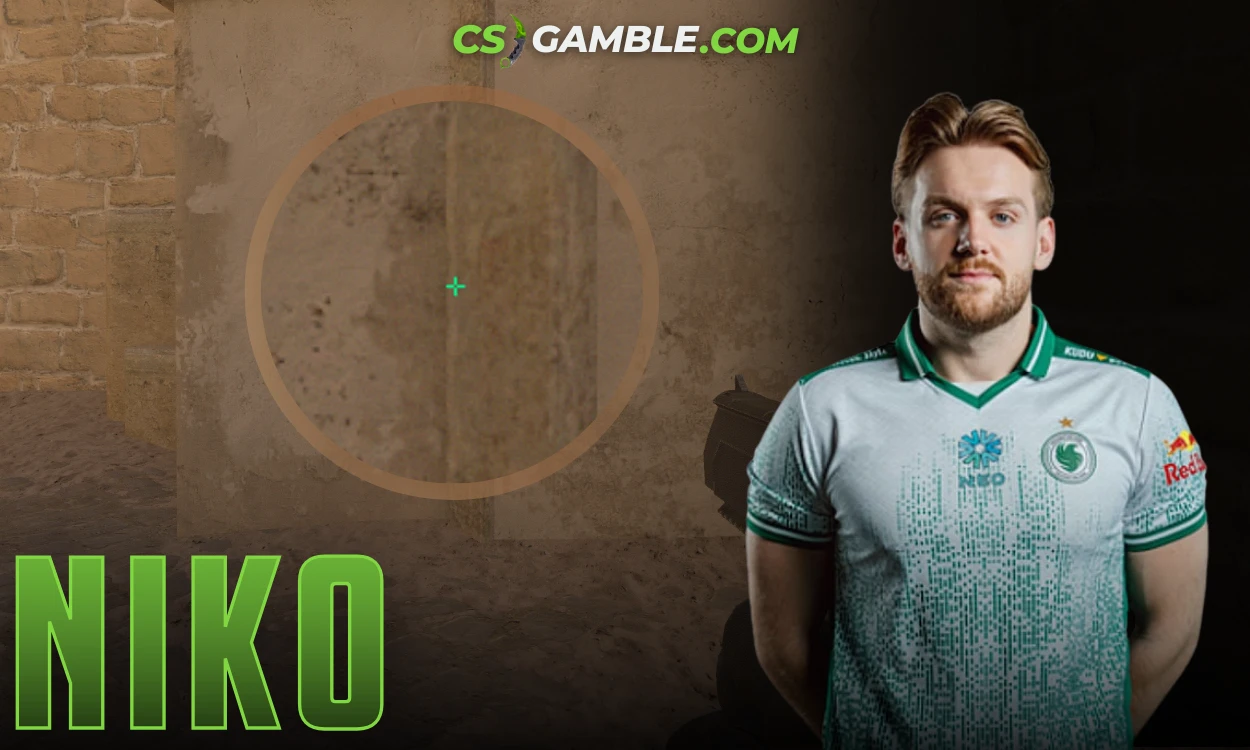
Rest of the settings from NiKo: ProSettings
- Style: Classic Static;
- Thickness: 0;
- Gap: -4;
- Color: Custom (R0 / G255 / B145);
- Alpha: Yes (255).
Crosshair code:
CSGO-RJ5NF-nRqHU-eUDOm-9k24O-uhmwG
Donk CS2 Crosshair
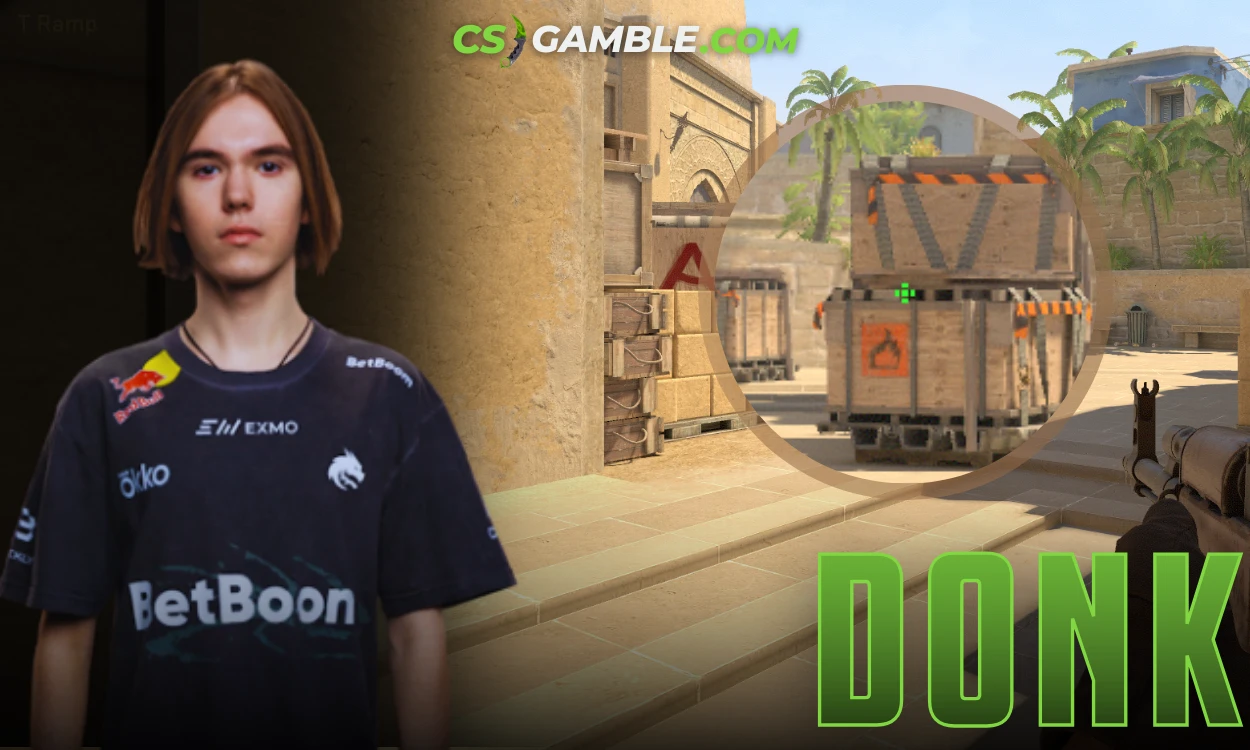
Rest of the settings from Donk: ProSettings
- Style: Classic Static;
- Thickness: 1;
- Gap: -3;
- Color: Green;
- Alpha: Yes (255).
Crosshair code:
CSGO-YohMc-O5ye6-TQ9c3-htAA6-9DmDA
m0NESY CS2 Crosshair
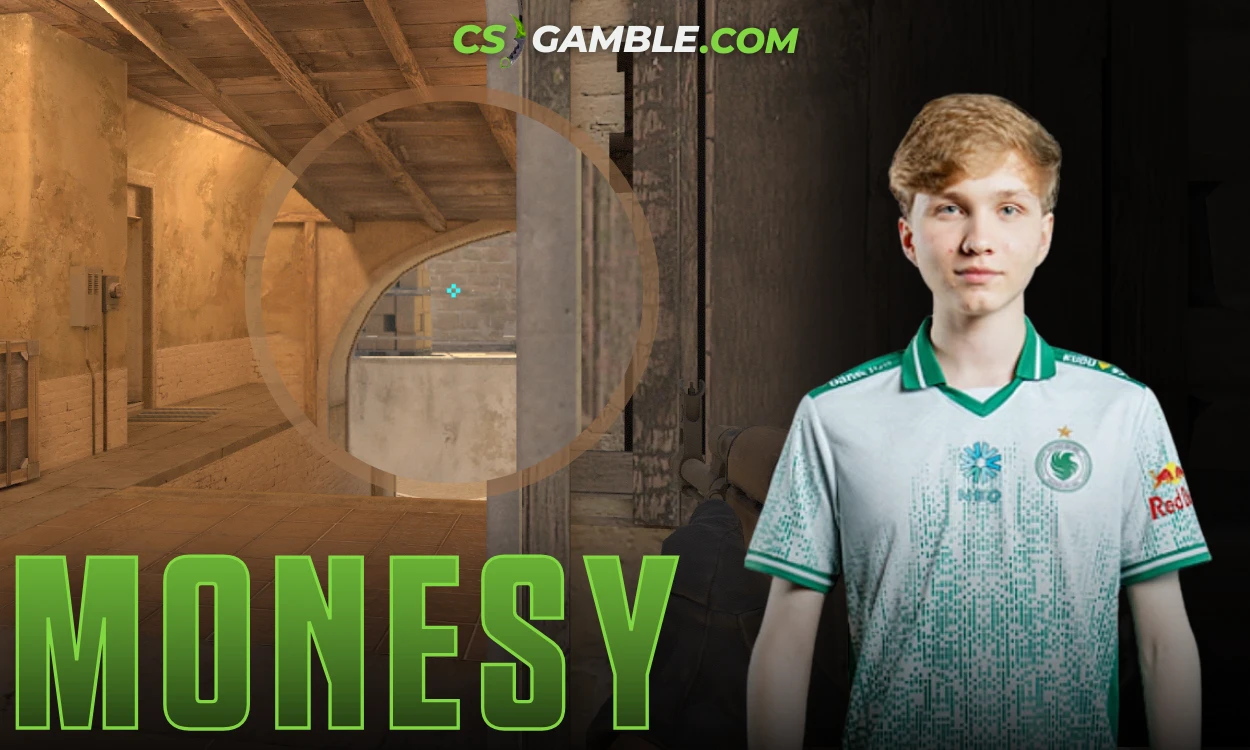
Rest of the settings from m0NESY: ProSettings
- Style: Classic Static;
- Thickness: 1;
- Gap: -4;
- Color: Cyan;
- Alpha: Yes (255).
Crosshair code:
CSGO-wAD3c-ykt5L-zvZ98-vBisR-6sWPA
Broky CS2 Crosshair
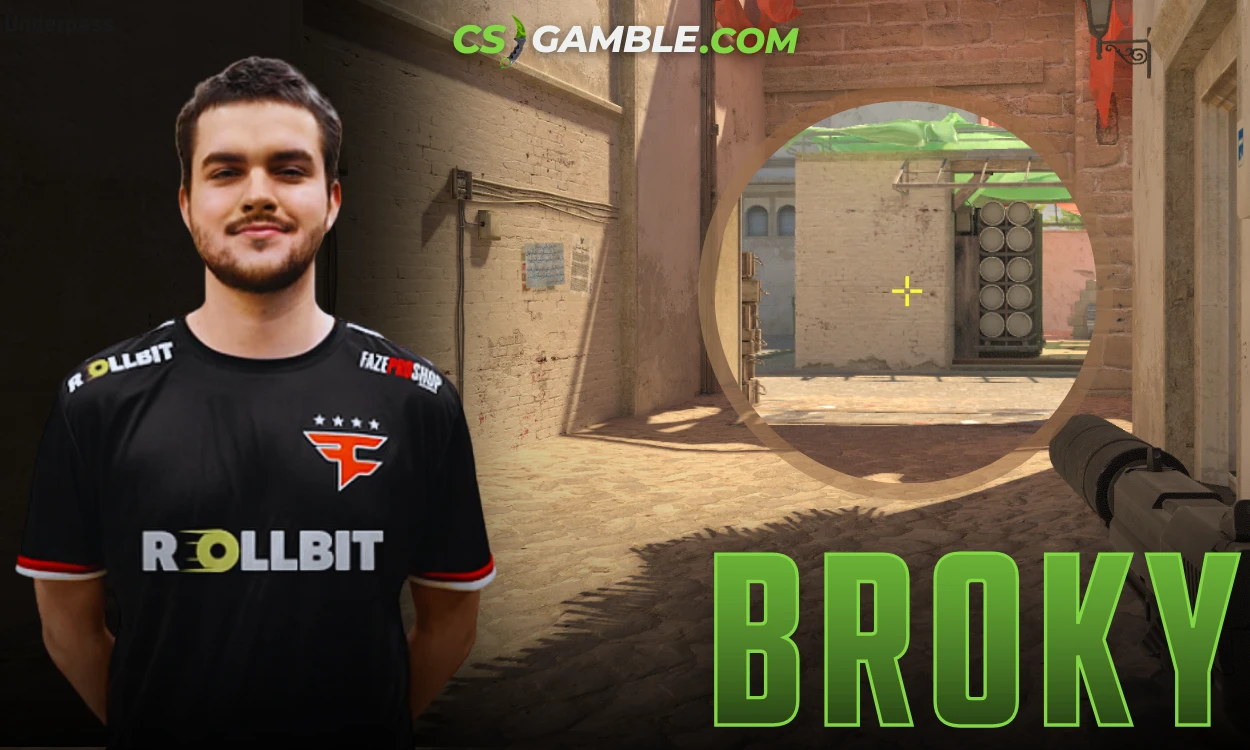
Rest of the settings from Broky: ProSettings
- Style: Classic Static;
- Thickness: 1;
- Gap: -3;
- Color: Yellow;
- Alpha: Yes (255).
Crosshair code:
CSGO-FedWa-5kN7Z-TLUss-ic8TS-YJeFO
How Crosshair Choice Affects Aim and Spray Control
A stable crosshair improves:
- Recoil compensation;
- Spray muscle memory;
- Crosshair placement consistency.
Dynamic or oversized crosshairs reduce precision and introduce inconsistency.
Common CS2 Crosshair Mistakes to Avoid
- Oversized crosshairs;
- Frequent crosshair changes;
- Poor color contrast;
- Dynamic styles in competitive modes;
- Copying pro settings without adjusting sensitivity.
Best Crosshair Settings for Different Screen Resolutions
1080p Crosshair Settings
- Slightly thicker lines;
- Medium size;
- Optional outline.
1440p and 4K Crosshair Settings
- Thinner lines;
- Smaller size;
- No outline.
Higher resolution allows cleaner crosshair designs.
How Often Should You Change Your Crosshair?
Recommended:
- Stick to one crosshair for several weeks;
- Adjust only minor values;
- Avoid changes during losing streaks.
Consistency improves aim more than experimentation.
Frequently Asked Questions About CS2 Crosshairs
1. What is the Best Crosshair in CS2?
Green and cyan provide the best overall visibility.
2. Do Pro Players Use Static or Dynamic Crosshairs?
Almost all professional players use static crosshairs.
3. Is There One Best Crosshair for Everyone?
No. The best crosshair CS2 settings depend on sensitivity, resolution, role, and comfort.

Related Articles
Best CS2 Launch Options in 2026 for FPS, Performance and Low Latency
The best CS2 launch options in 2026 are -novid -high -nojoy -freq matched to your monitor's refresh rate, with +fps_max 0 optional for uncapped frames. CS2 is well optimized, so a short line beats the long command strings people copied over from CS:GO. Below is every command worth using, what each one does, and which ones to skip.
CS2 Pro Player Settings 2026: What the Best in the World Actually Use
Read more
Ultimate Guide to Best CS2 Settings (2026) – Configs, FPS & Optimization
Read moreHot Promo Codes



View all promo codes
Browse All Sites