

Finding the best cs2 settings is critical if you want to climb the ranks, maximize visibility, and ensure your shots land where they should. Whether you are a casual player or aspiring for the big leagues, optimizing your cs2 settings can give you an immediate competitive edge.
This guide covers video optimization, audio configs, viewmodels, and setup examples.
Why Optimizing CS2 Settings is Critical
Counter-Strike 2 is a game of milliseconds. In a match where a single tick can determine the winner of a round, having the best CS2 settings isn’t just a luxury – it is a competitive necessity.
Optimizing your game goes beyond just making it look “clean”; it directly impacts three core pillars of gameplay:
- Visibility: Seeing enemies clearly against complex backgrounds.
- Latency: Minimizing input lag for snappy mouse movement.
- Consistency: Ensuring stable frametimes so your aim remains true during chaotic gunfights.
Many players struggle because they stick to default configurations. By switching to performance settings, you strip away visual clutter and prioritize raw performance, giving you a decisive technical advantage.
Best CS2 Settings for FPS & Visibility
If you want the best CS2 settings for fps, you must be willing to sacrifice some visual fidelity for performance. High framerates reduce input lag, making the game feel significantly more responsive.
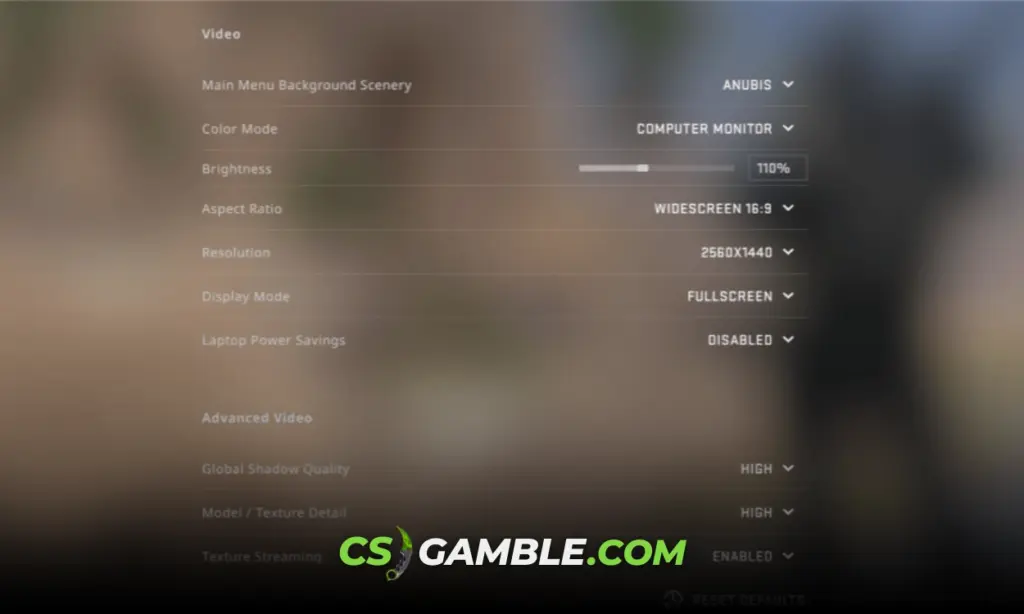
Video Settings (Recommended for Max FPS)
These are the baseline CS2 settings used by the majority of the competitive community to maximize frames without making the game look like pixelated mush.
| Setting | Recommended Value | Impact |
| Display Mode | Fullscreen Exclusive | Critical for lowest input lag |
| Resolution | 1280×960 (4:3 Stretched) | Makes models appear wider |
| Refresh Rate | Max Available (e.g., 240Hz/360Hz) | Smoothness |
| V-Sync | Disabled | Prevents input lat |
| NVIDIA Reflex | Enabled + Boost | Reduces system latency |
| Multisampling AA | CMAA2 or 4X MSAA | Balances edges vs. Performance |
| Global Shadow Quality | High / Medium | Essential for seeing enemy shadows |
| Model / Texture Detail | Low | Boosts FPS significantly |
| Shader Detail | Low | Removes distracting shiny effects |
| Particle Detail | Low | Better FPS in smokes/molotovs |
| Ambient Occlusion | Disabled | Unnecessary visual noise |
| High Dynamic Range | Performance | Better visibility in dark spots |
| FidelityFX Super Res | Disabled (Highest Quality) | Avoids blurriness |
Advanced Graphics Tweaks & Low-End PC Optimization
For those on older hardware looking for cs2 settings for fps, you should dig deeper into the advanced tab.
- Disable Motion Blur: This is non-negotiable. It ruins clarity during fast turns.
- Disable Film Grain: Removes the “cinematic” noise that obscures vision.
- Boost Player Contrast: Keep this enabled. It creates a halo around character models, making them pop against the background.
CS2 Audio Settings for Competitive Play
Sound is your wallhack in Counter-Strike. If your cs2 audio settings are poorly configured, you will mis flankers and lose clutch situations.
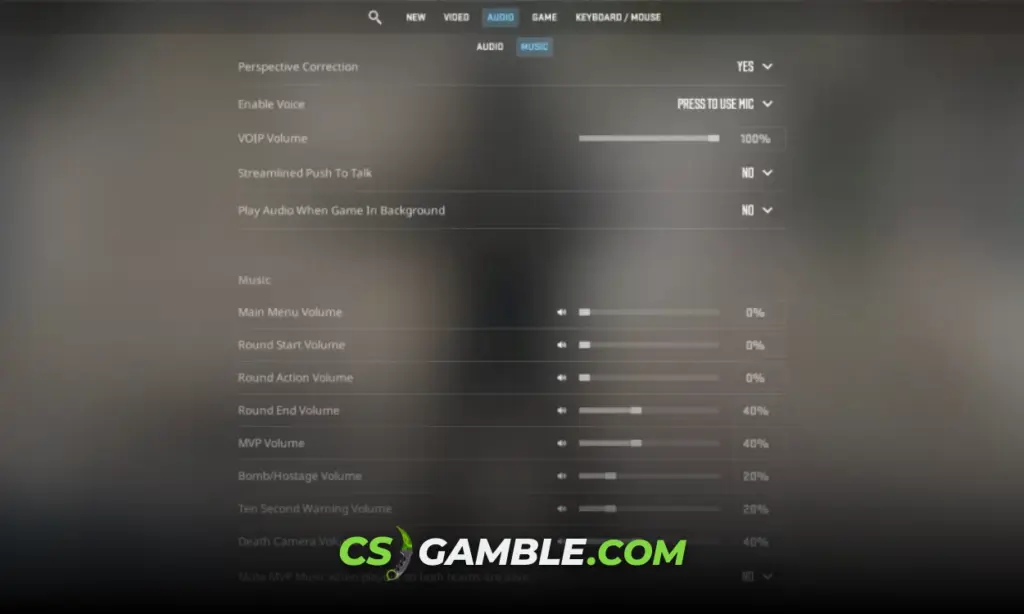
Best CS2 Sound Settings for Footsteps
- Master Volume: 60-100% (High enough to hear subtle cues).
- Audio Device: Select your specific headset, not “Default Device”.
- EQ Profiles: Crisp. This profile boosts high frequencies, making footsteps and reload cut through the mix of gunfire.
- L/R Isolation: 50-70%. This is the most important CS2 sound setting. 0% blends sound too much, while 100% separates it too harshly. A middle ground helps you pinpoint diagonal directions.
- Perspective Correction: No.
Gameplay & UI – CS2 Viewmodel Settings & Radar
Your HUD (Heads Up Display) should give you information, not block your view.
Optimal CS2 Viewmodel Settings
The default viewmodel takes up too much screen space. Use these cs2 viewmodel settings to push the gun to the side and stabilize it during movement. Copy these into your console:
viewmodel_fov 68
viewmodel_offset_x 2.5
viewmodel_offset_y 0
viewmodel_offset_z -1.5
viewmodel_presetpos 3
The Best CS2 Radar Settings
A zoomed-in radar is useless. You need to see the bomb drop on the other side of the map. Use this cs2 radar setting to zoom out and center the map correctly:
cl_hud_radar_scale 1.1
cl_radar_always_centered 0
cl_radar_scale 0.4
cl_radar_rotate 1
CS2 NVIDIA Settings & System Optimization
Your in-game config is only half the battle. If you have an NVIDIA card, specific cs2 Nvidia settings can drastically reduce system latency.

NVIDIA Control Panel & Low Latency Mode
- Right-click your desktop and open the NVIDIA Control Panel.
- Navigate to Manage 3D Settings.
- Low Latency Mode: Set to Ultra. This minimizes the queue of frames the CPU prepares for the GPU.
- Power Management Mode: Prefer Maximum Performance. This forces your GPU to run at high clock speeds even when load is low.
- Texture Filtering – Quality: High Performance.
These tweaks ensure your hardware isn’t bottling your potential, acting as the foundation for the best cs2 settings for fps.
CS2 Optimization Checklist (Step-by-Step)
Before jumping into Premier mode, run through this final checklist to ensure you have the cs2 best settings enabled.
In-Game & Console Commands
- Enable Developer Console (~).
- Input CS2 viewmodel settings.
- Input CS2 radar settings.
- Set Audio EQ to “Crisp”.
System, Drivers & Launch Options
- Update GPU Drivers to the latest “Game Ready” version.
- Apply CS2 Nvidia settings (Low Latency: Ultra).
- Set Windows Mouse Settings to 6/11 and disable “Enhance Pointer Precision”
- Use Launch Options: -freq 240 -novid -tickrate 128 (if applicable).
Final Verification
- Jump into a Deathmatch server.
- Check if your FPS is consistently above your monitor’s refresh rate.
- Verify audio directionality by listening for spawns.
Final Thoughts on CS2 Best Settings
Finding the best cs2 settings is a mix of optimizing for objective performance (FPS, latency) and subjective comfort (sensitivity, resolution).
Remember: CS2 settings for fps will help your computer run the game, but your mechanics will help you win it. Optimize your PC, then optimize your aim by configuring the best crosshair for you.
Frequently Asked Questions
High brightness (110-130%), “Boost Player Contrast” Enabled, and 4:3 Stretched resolution are generally considered the best for spotting enemies.
Most CS2 players use low resolution (1280×960) because it makes player models look wider (easier to hit) and boosts FPS significantly.
The “desktop” preset or the custom settings listed above (viewmodel_fov 68) are preferred because they block the least amount of screen space.